Making datasets could
be a little more fun
A dataset manager made for curating training data for Booru-tag based models, with a focus around Anima by Circlestone labs.
Osmium is feature-dense, comes with plenty of QoL features, and contains a slew of comprehensive visual customization to make curating datasets a hobby that doesn't make you scratch your head like a monkey.
Osmium is capable of running WD14 AND your Comfy installation with its integrated workflow. The latter works by driving your full Comfy server, or by Osmium its own minimalistic server that only loads what it needs on-demand.
WD14 tagging can run even without Comfy by using your CPU or GPU as configured. Osmium and ComfyBridge do not share a terminal; you will not be able to run Osmium's SynthDat tab generations on a Cbridge terminal and vice versa.
Cool Stuff You're Getting:
As a bonus, almost all of them create logged entries so you can undo them at any time.
The Basics
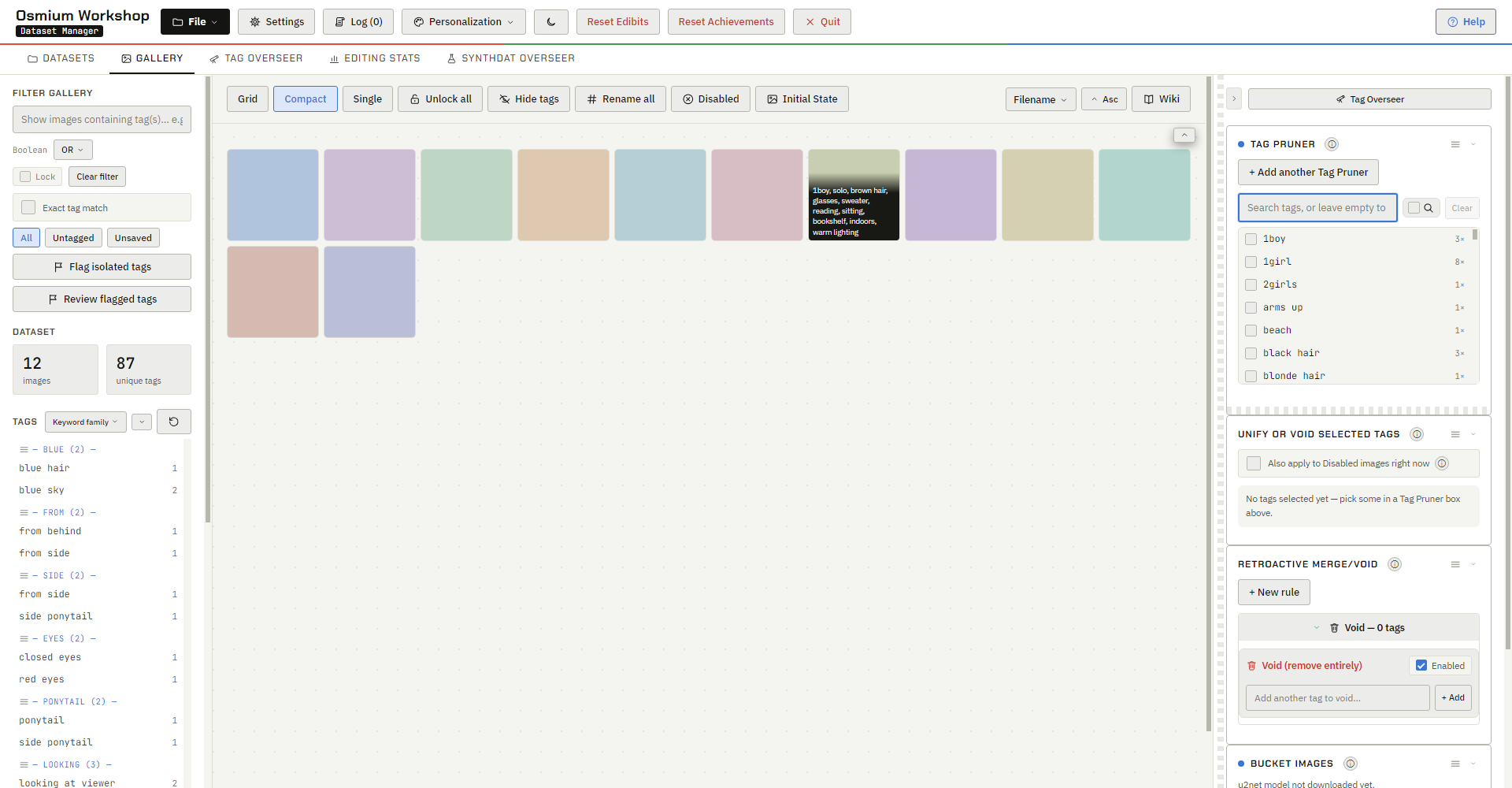
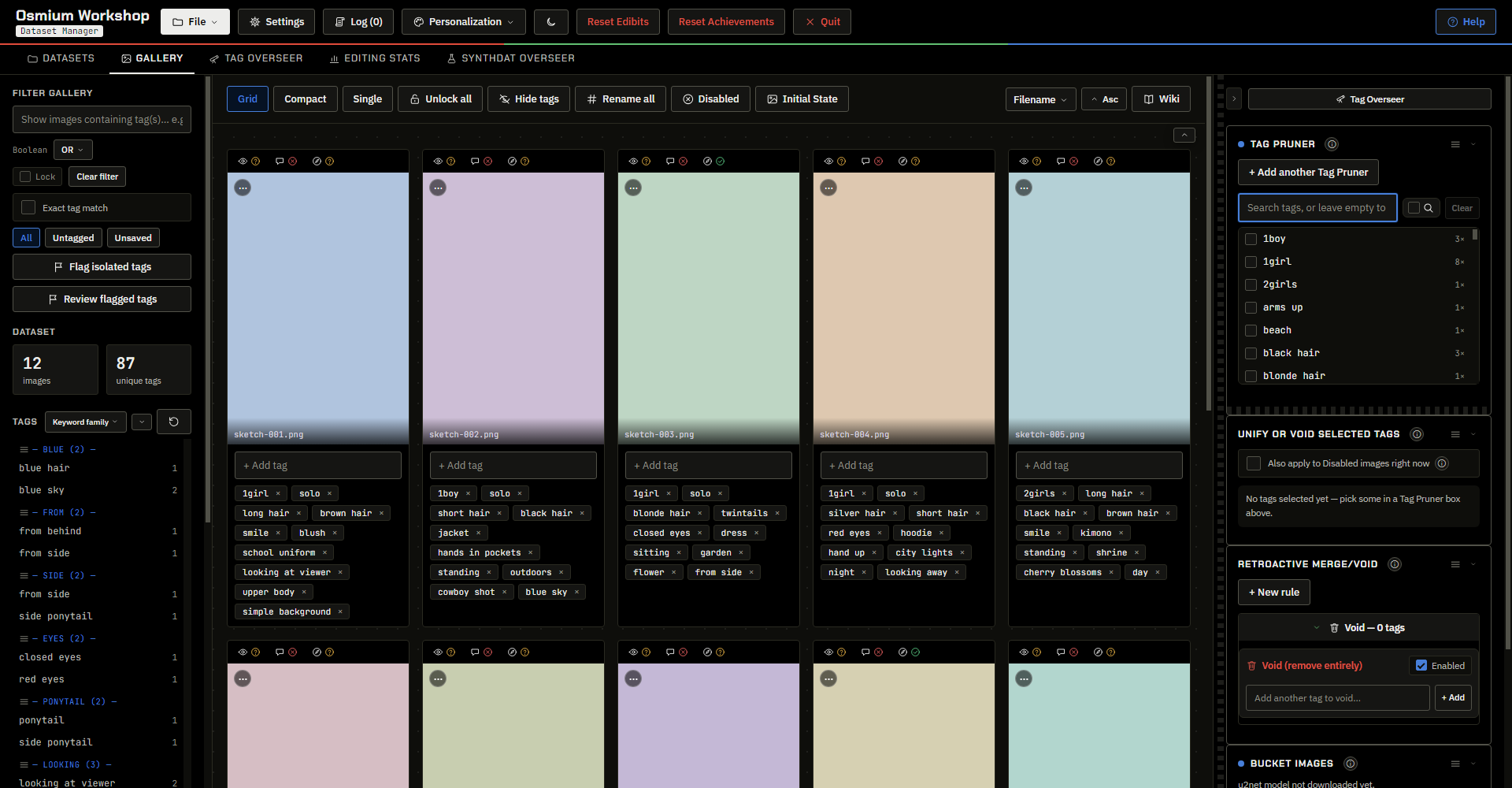
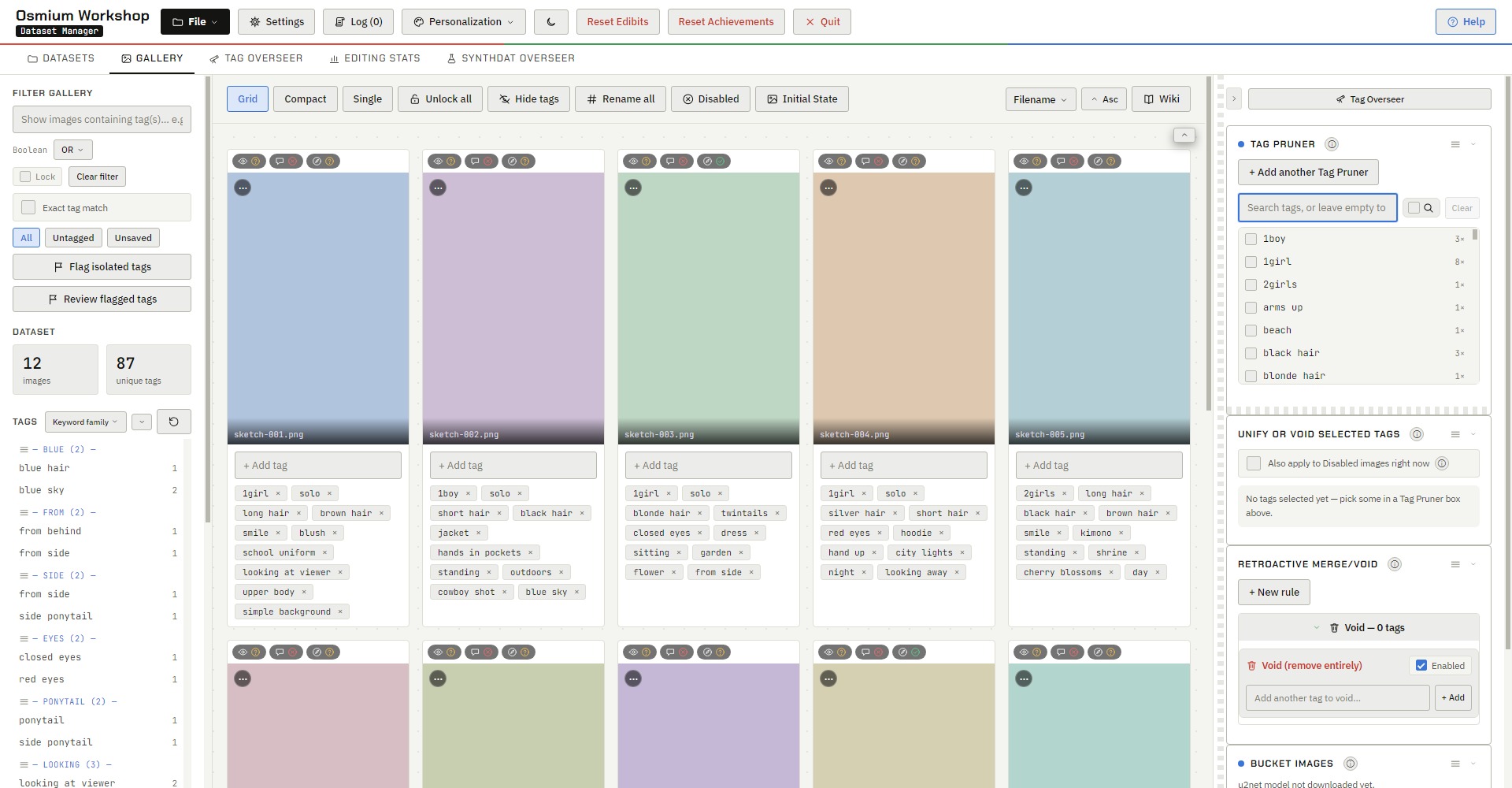
The default view for the Gallery is Grid View, where every image in your dataset is represented by a CARD. Cards consist of a preview of your image, with the tags assigned to it represented by CHIPS. When you double click a chip, it allows you to edit the tag directly inline. Right-clicking a chip brings up a context menu for additional options, such as flagging a tag for review or viewing its definition via the built-in wiki.
Tag Pruner — Unify & Void
Using WD14 can be messy, especially when prepping Character LoRA, when it can apply multiple variations of the same tag on multiple different images (example: one image has Blue Hair while the other has Black Hair, but you know for certain it's blue).
Fret not my little chudling; with Tag Pruner, Osmium grants you greater control over how unwanted tags should be dealt with. This is referred to as adding a RULE. Rules are automated tag corrections that will affect all images retroactively once the rule is created.
Rules are split into 2 categories: MERGE and VOID. Merge works as mentioned above, while Void deletes a tag entirely from the entire dataset (useful for getting rid of things that never appear, or for tags that aren't helpful in image labeling).
Immunize and Antivoid
But what if you don't want your rules to apply everywhere? Some images may genuinely have black hair, but you have way more blue haired ones than black. Right click an image to apply IMMUNIZE or ANTIVOID.
Immunize prevents images from being affected by merges, while Antivoid?
You're not gonna believe this, but... Antivoid does exactly what it says it does. Shocker.
WD14 Autotagging
Osmium can run WD14 both with and without ComfyUI. Set whatever server you want WD14 to run from (No ComfyUI still requires a model downloaded for actual inference) and you can configure tags to apply immediately or wait for review.
WD14 also works for images generated from SynthDat; Interrogate fresh outputs with WD14 to catch gaps in your initial tagging before you accept it into your dataset.
SynthDat Overseer
If you're training Character LoRA, you may sometimes have less images than you'd like (probably cause you're training off some obscure artist's OC or whatever, lol). Or maybe that character is just genuinely unpopular.
SynthDat's generation function serves as a solution to thin character datasets. It is recommended to train an at-least somewhat functioning LoRA with your initial images, then come back to Osmium and use SynthDat to generate that character in different poses.
If you're struggling to get poses right, Osmium comes with CONTROLNET using reference images within its integrated workflow; add a reference image and use that as a way to strongarm your character into a certain pose. The Controlnet is built for Anima specifically so don't expect it to work with a different model loaded.
Osmium can be wired to a running ComfyUI instance (supports Tailscale connections) or to use your current Comfy installation to run Osmium's Comfy setup (which only loads the nodes it needs from its custom node pack - You need to install that.
The practical advantage is that it loads faster (about 20s compared to 2-3 minutes on weaker machines like 30-series Laptops). Simply point Osmium to your ComfyUI folder (it should include the Python env if you're using Portable) and hit connect.
External Undo/Redo logging
Osmium's undo and redo persist even when you exit the program or save your edits. Unlike standard undo/redo, your edits are all logged in a text file in the dataset root. That way, you can see every edit from the very moment you start curating all the way to the very last one you do.
Tag Overseer
Quickly select images, configure WD14, mass-apply tags, and segregate images into defined bucket dimensions (use 512x1024, for people like me with dogshit laptops, you're welcome), all within the Tag Overseer. It lives as an alternate righthand panel, accessible either by clicking its TAB or the Tag Overseer button in the regular righthand panel.
This feature works directly (and is also lifted from) Anima Trainflow.
Sequential Edit
Sequential Mode is a subview of Single Mode, found in Tag Overseer or by the right-click context menu. Sequential mode can be started from the very first image in your dataset or from a specific one. While Single Mode manages image composition and content, Sequential mode is primarily used to classify image technicalities. Censors/Text/Perspective are included under its umbrella. Like Single mode, all these tags can be appended with a single checkbox toggle.
I added this because WD14 is inconsistent at determining perspective; a lot of images often have it skipped entirely.
Quicktagging, Tag Sorting and the Wiki
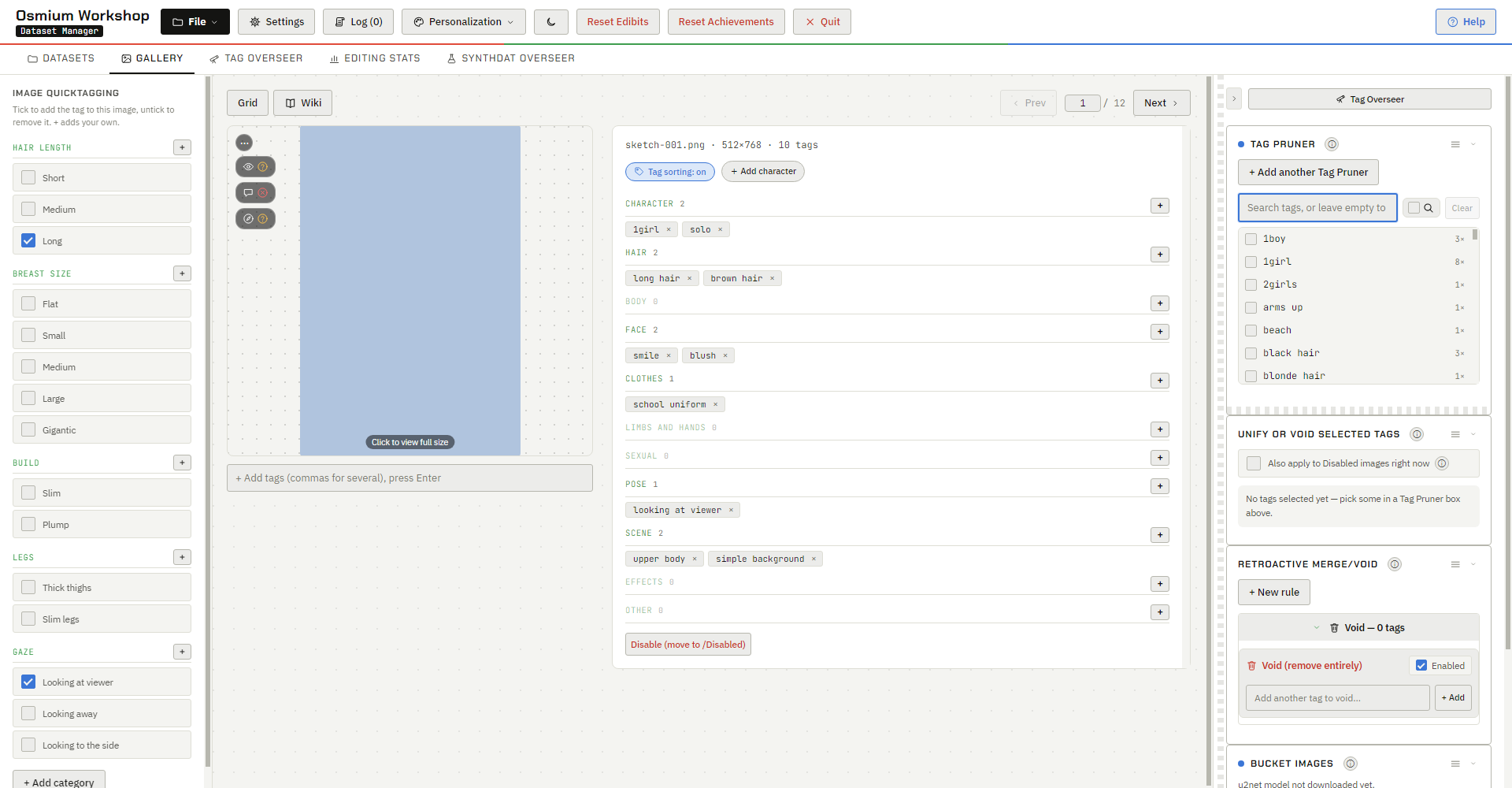
Single Mode replaces the standard lefthand panel with QUICKTAGS. Use this to quickly assign tags to an image that require a lot of case-by-case eyeballling, like breast size or hair length. Quicktags also supports toggle logic: you can set quicktags to automatically tick/untick other quicktags when toggled.
Tag Sorting is a purely visual setting that groups an image's tags under Character, Hair, Body, Face, Clothes, Pose, Scene and the rest, to make assessing tags faster at a glance. Lastly, the WIKI button opens a small window that looks up what any tag means, and stays open while you work.
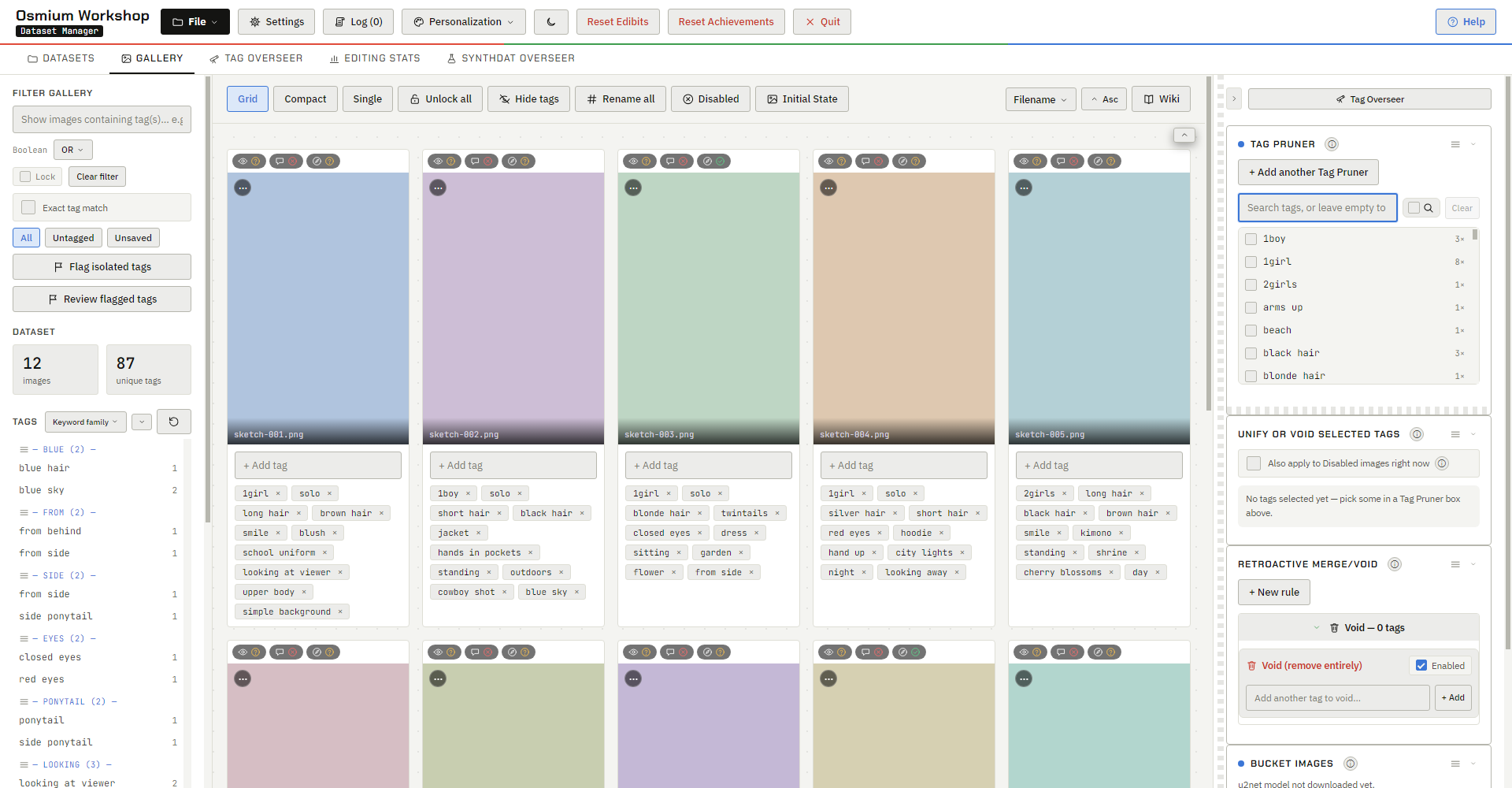
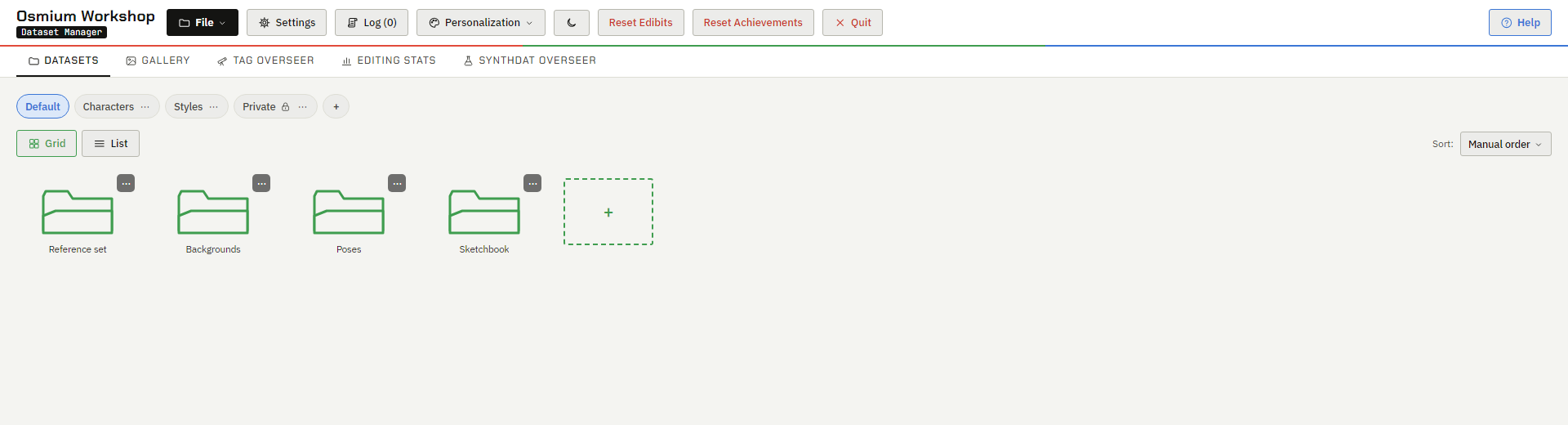
Test it live, right here
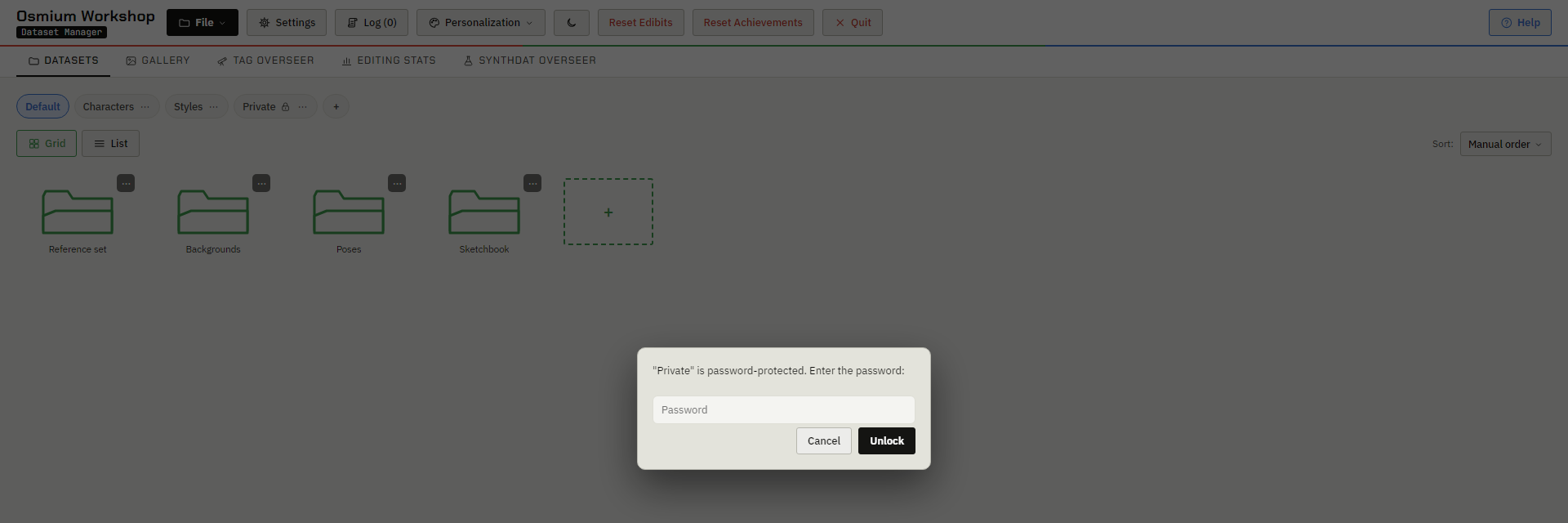
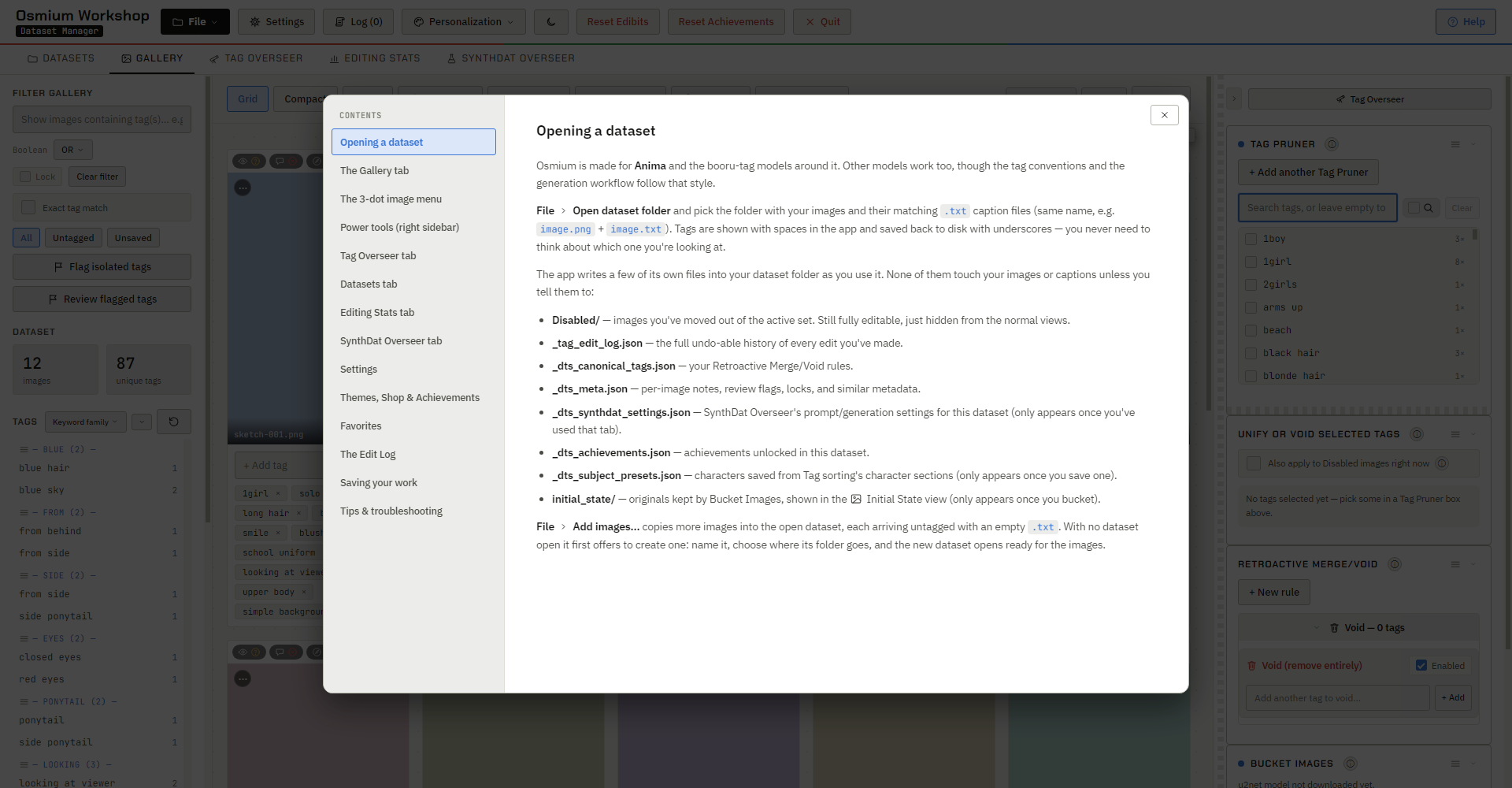
Don't wanna download it yet? Don't fret; I put the damn thing right on this page. That way you can put your slimy little mitts all over my pristine buttons without any committment.
Since I don't want you to think I'm putting viruses on your PC/Laptop/glorified potato wired to a GTX by asking you to test it on your own datasets, I threw in an example dataset: Chromatic Void. Every image is still untagged.
You can use this opportunity to try out a bunch of Osmium's functions. Note that while the WD14 and SynthDat functions "work" in this demo, they are faked, preset outputs. But hey, cut me some slack okay? I decided against asking you to wire your Comfy to some shady site since it was in bad taste.
Comfy Bridge: Alternative ComfyUI WebUI
Honestly the name kind of explains it all. It's a bridge between Osmium's integrated workflow and your own ComfyUI installation. Useful for those who want a quick and easy Anima workflow without doing any workflow building themself.
Osmium's Comfy Instance
Osmium ships its own stripped-down Comfy workflow. It needs one thing from you, the Osmium custom node pack. Point it at your ComfyUI folder, connect from the Bridge or SynthDat tab, and it boots a lean server that loads only what the workflow uses. Seconds to start, not minutes. Prefer your own Comfy? Point Osmium at its URL and port instead.
WD14 runs through Comfy, or on your CPU or GPU with no Comfy at all. Bridge also lets your phone drive your home machine's Comfy and pull the finished images straight back onto the phone. Two catches. The workflow is built around Anima, so ControlNet will not cooperate with other models, and Osmium and ComfyBridge keep separate terminals, which means SynthDat generations cannot run on a Cbridge terminal, or the other way round.
Automatic Generation Filenames
Bridge has a handy file-naming system for your generations, being able to sort them by content rating, character names, main LoRA used, and generation parameters. These are all toggleable and so you can freely decide how your outputs will be named. You can save them directly to your own Comfy /output folder, or save a copy in a different folder while deciding if Comfy also concurrently saves its own copy in /output.
You can set the output folder in the Prompts column in Bridge by scrolling to the very bottom.
Built-in Booru Tag Wiki
You don't need internet to access Osmium's bundled Danbooru Wiki. In Osmium Desktop, you can pop its tab out in Single View, which will persist everywhere in Osmium until closed. Conversely, Bridge also comes with the wiki built-in, so you can quickly look up what a tag may mean before using it in generation.
Visual Customizability
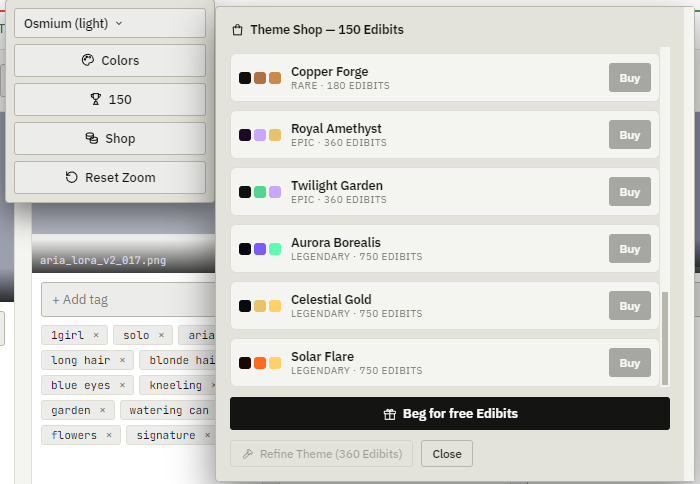
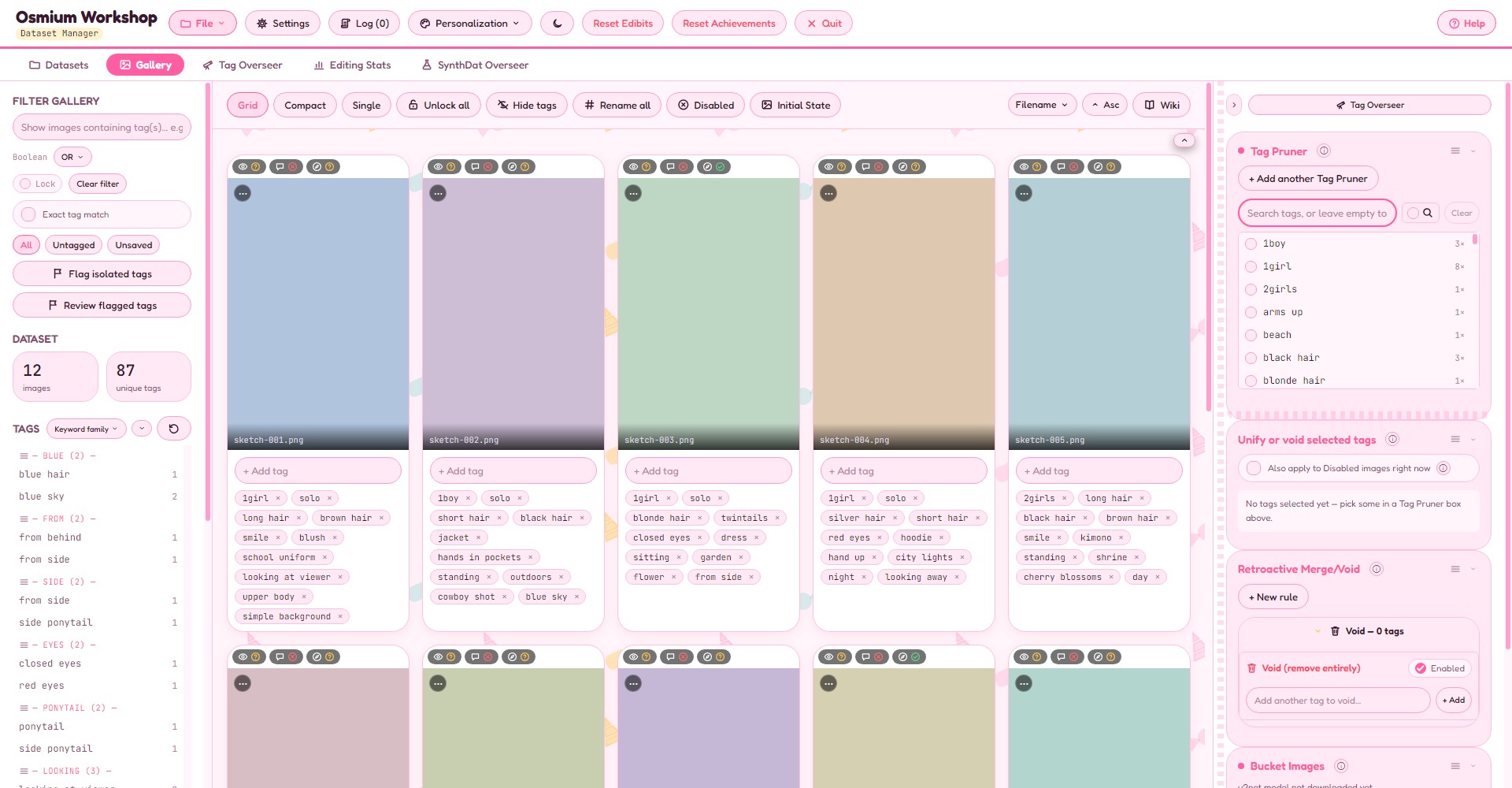
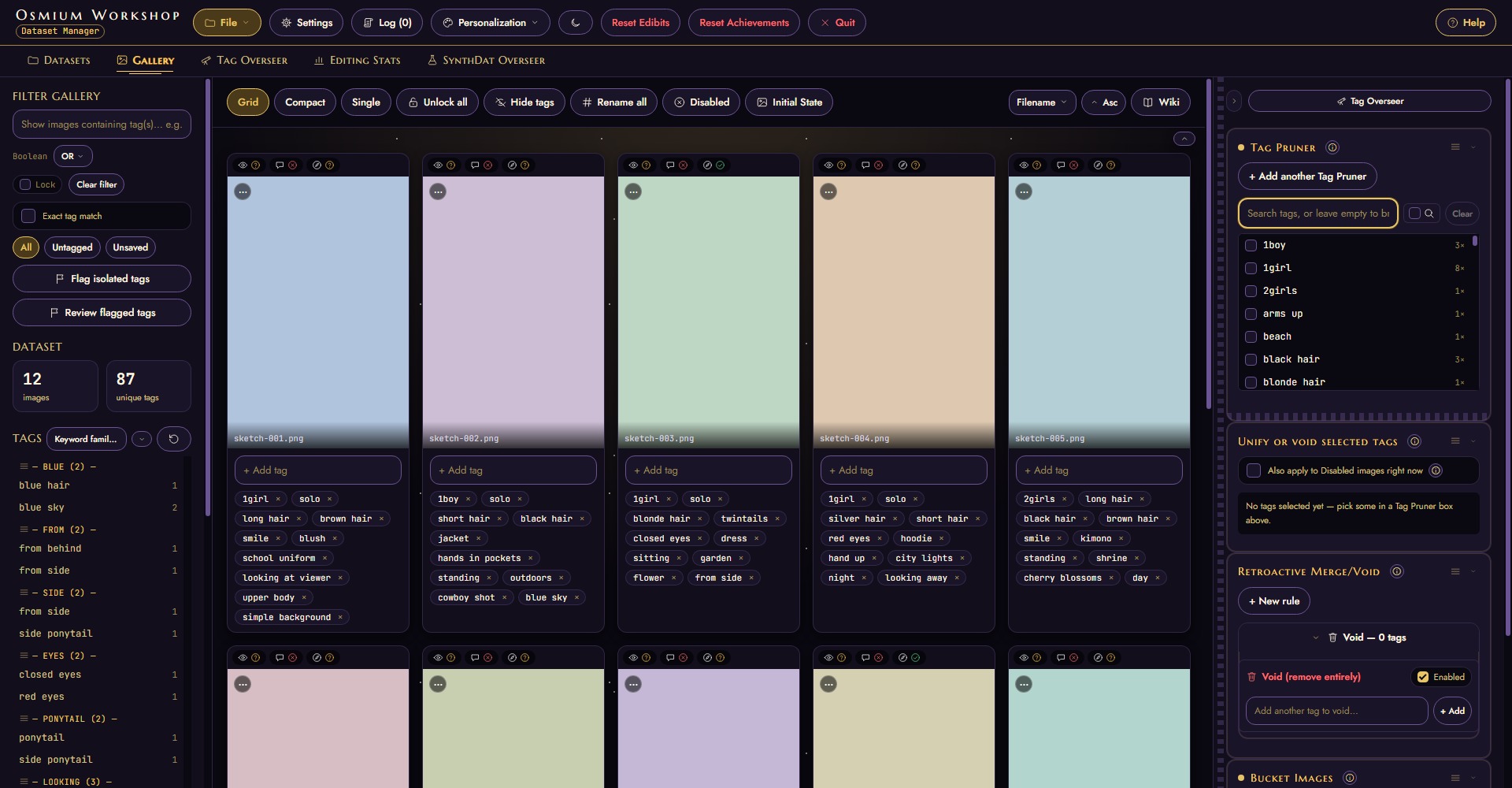
If you're going to stare at a dataset for a few hours, why not make it less of an eyesore? Both Osmium and ComfyBridge feature a slew of themes, each with a toggleable animated background. Hopefully it makes staring at the same image a lot less grating (also I don't like ugly dataset managers).
You can even test out Osmium's themes right here with the site's theme dropdown, or from the demo itself.
Because it wasn't enough to have a gazillion vibecoded dataset managers out there
You can shove 3 different flavors of Osmium down your computer's gullet.
How fun.
Osmium Workshop
The Dataset manager. Used for tagging images and generating additional material for small datasets.
↓ Download (Windows)Comfy Bridge — Desktop
A simpler ComfyUI webUI with one built-in workflow, for when you just want the image without wrangling a node graph.
↓ Download (Windows)Comfy Bridge — Mobile
Comfy Bridge on Android: drive your PC's ComfyUI from your phone over LAN or Tailscale, and get the finished images straight back on the phone.
↓ Android APK